
Short answer: Vispero released JAWS, ZoomText and Fusion 2027 on 3 November 2026. The most important news for people with low vision is Photo Tracking, which moves the magnified view straight from person to person and from object to object in a picture – without internet – and a new command, CAPS LOCK + D, which shows protected documents and apps that used to appear as a black box. Users can now also choose between best text quality and best performance. In JAWS, Vispero Companion brings all the AI features together in one conversation, but the new version is for now only available in the United States.
Inva Store does not sell the programs described here. This article is an independent review based on Vispero's own release notes and blog posts from November 2026.

Overview: three programs, three user groups
| Program | For whom | Most important news in 2027 |
|---|---|---|
| JAWS 2027 | Blind users working with speech and braille | Vispero Companion, MuseScore, Windows Terminal, AI chat apps |
| ZoomText 2027 | People with low vision who need magnification and possibly speech | Photo Tracking, viewing protected content, choice between text quality and performance |
| Fusion 2027 | People with low vision who also need a full screen reader – e.g. with progressive sight loss | Everything from ZoomText and JAWS plus AI description of objects in Photo Tracking |
The version numbers are JAWS 2027.2610.428.400, ZoomText 2027.2610.327.400 and Fusion 2027.2610.63.400. For the differences between the programs, see JAWS, ZoomText, Fusion or SuperNova?
Photo Tracking: magnification that finds the people in a picture
The problem: a photo has no "focus"
When you magnify the screen, you only see a small part of it at a time. In applications and on web pages this is manageable, because ZoomText follows the focus: the cursor, the menu item or the button you are on. A photograph has no such structure – it is just pixels. To see the faces in a group photo, you have to pan across background, trees and sky until you reach a person. The higher the magnification, the less of the picture you see, and the longer it takes.
Ryan Jones, who is responsible for products and customer experience at Vispero, used ZoomText himself when he had low vision. He describes exactly this problem as the reason for the new feature.
How it works
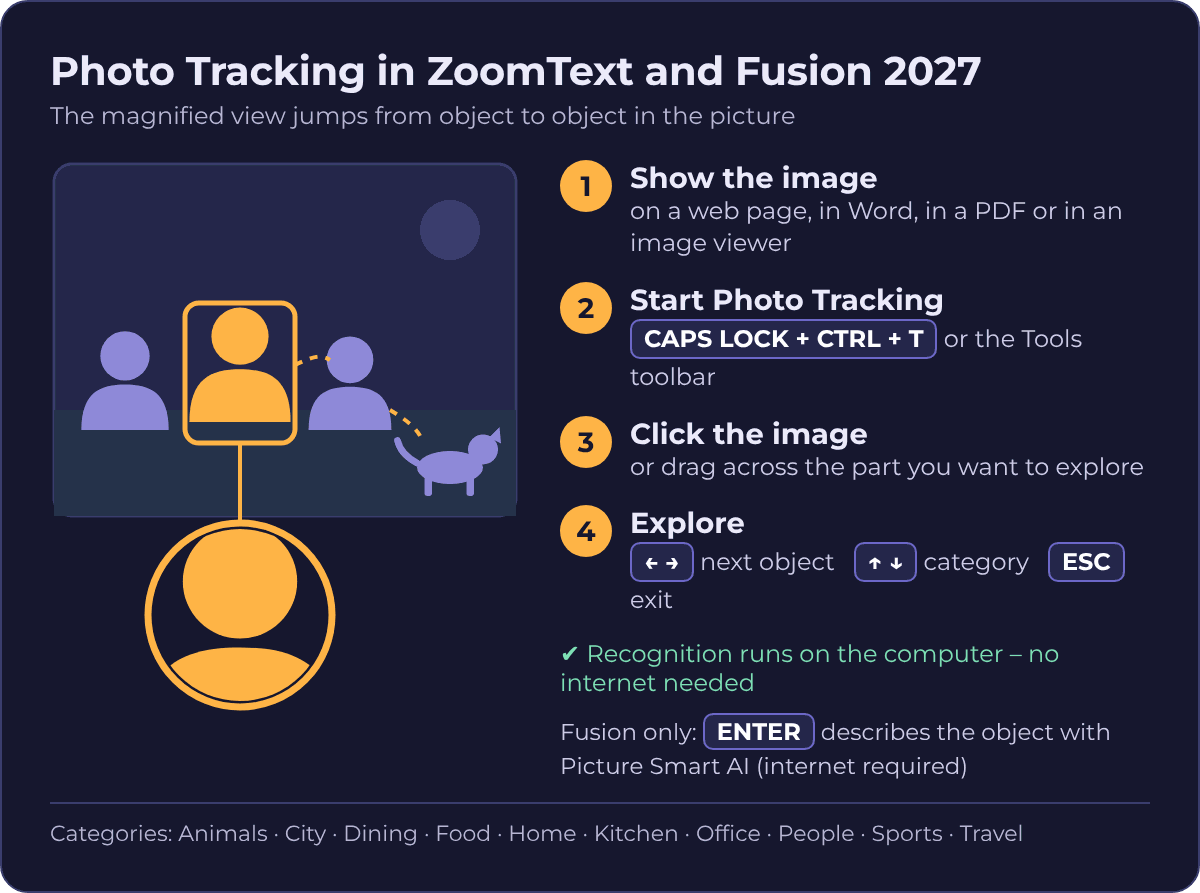
Photo Tracking recognises people, animals, food and other objects in an image and moves the magnified view directly from one object to the next. It is available in ZoomText Magnifier, ZoomText Magnifier/Reader and Fusion.
- Display the image on a web page, in a Word document, in a PDF file or in an image viewer.
- Choose Photo Tracking on the Tools toolbar, or press CAPS LOCK + CTRL + T. In Fusion with the laptop keyboard layout, press CAPS LOCK + ALT + CTRL + T.
- Click the image, or drag across the part of it you want to explore. Photo Tracking can also be set to analyse the active window automatically.
Keys and categories
Objects are grouped into ten categories: Animals, City, Dining, Food, Home, Kitchen, Office, People, Sports and Travel. Photo Tracking starts with your favourite categories – People and Animals by default – which can be changed in the Photo Tracking settings.
| Key | What it does |
|---|---|
| LEFT ARROW / RIGHT ARROW | Previous or next object |
| UP ARROW / DOWN ARROW | Previous or next category |
| First letter of a category | Jump straight to that category, e.g. P for People |
| CTRL + A | Explore all objects, not only the favourite categories |
| CTRL + R | Refresh if the image has changed |
| ENTER (Fusion only) | Describe the current object with Picture Smart AI – internet required |
| CAPS LOCK + UP ARROW / DOWN ARROW | Change magnification; ZoomText now announces the new level |
| ESC | Exit Photo Tracking |
No internet needed – and why it matters
Recognition happens on the computer itself. Images are not sent to a cloud service, and the feature also works offline. This makes Photo Tracking usable in workplaces with confidential information, where IT does not allow images to leave the organisation. Only the ENTER description in Fusion uses the internet.
What Photo Tracking is not
Photo Tracking is above all a navigation aid: it finds the objects and shows them up close, so users can look at them with their own sight. A spoken description of the picture requires Picture Smart AI (in Fusion and JAWS) and an internet connection, and text in images is still read with the OCR tool.
Everyday examples
- Family photos received by email or shared on social media: who is there, and what do they look like?
- Photos of colleagues or partners on the intranet before a meeting.
- Teaching materials and PDF files with photos.
- Pictures from a company event or a school trip.

Where Vispero is heading
According to Vispero, the same technology could later recognise other visual elements, such as menus, so users can go straight to the information they need and rely more on the keyboard and less on the mouse. This is Vispero's plan for the future – not a feature of the 2027 release.
Protected documents and apps: CAPS LOCK + D
Why does the screen go black?
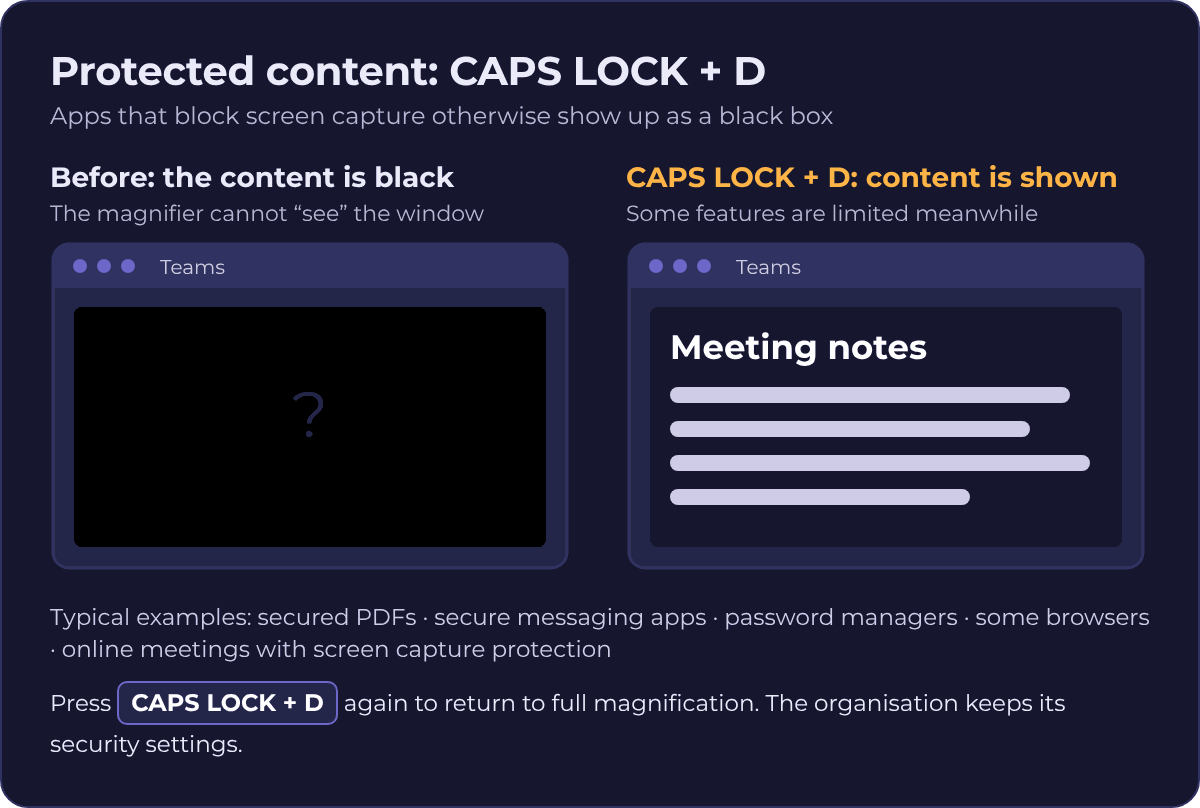
More and more applications protect their content by blocking screen capture: secured PDF files, secure messaging apps, password managers, some web browsers and online meetings where the organiser has turned on screen capture protection, for example in Teams or Zoom. One example is the Brave browser when the Windows Recall feature is turned on.
A screen magnifier works by continuously "photographing" the screen and showing it enlarged. When that is blocked, the user only sees a black rectangle. Vispero stresses that this is a limitation of the protected content, not a fault in ZoomText or Fusion.
The solution
In ZoomText and Fusion 2027, CAPS LOCK + D shows the protected content so it can be read. Meanwhile some magnification features are limited. When finished, press CAPS LOCK + D again to get all features back. The organisation does not need to turn off its security.
The command exists only in the 2027 versions. As more applications adopt this protection, users of older versions will see black areas more often.
Why it matters
Ryan Jones calls this one of the most important improvements in the release. It does not affect every user, but for an employee with low vision whose work depends on protected documents or meetings, it can make the difference between being able to do the job and not. A good tip is to tell the IT department about the keystroke, so they do not spend time looking for faults in the magnifier.
Faster magnification: best text quality or best performance
In the Preferences dialog box, the Smoothing tab is now called Smoothing and Performance. It offers two ways of drawing magnified text:
- Best text quality (default) uses both xFont – ZoomText's own technique for drawing sharp text at every magnification level – and geometric smoothing. It also supports legacy reading.
- Best performance uses geometric smoothing only, so ZoomText and Fusion respond faster. According to Vispero, many users find that text is still clear and comfortable to read. It also suits specific hardware, specialised applications and certain visual needs.
If ZoomText feels slow – for example when scrolling or typing – it is worth trying Best performance. The option is fully supported and can always be changed back. The choice is also offered on the Magnification page of the Startup Wizard. After a change, ZoomText or Fusion has to be restarted.
Other improvements in ZoomText and Fusion
- The Tools toolbar has been reduced from five groups to three: Visual (Camera, Photo Tracking and OCR), Auditory (Background Reader, Recorder and Voice Assistant) and Other. The features work as before – only their place has changed.
- True center tracking can now be chosen in the Startup Wizard. The mouse pointer, text cursor and focused item are kept in the middle of the zoom window instead of at the edge, so the eye does not have to search.
- Multiple monitors: the mouse can move between displays while using tools such as SpeakIt, OCR and Picture Smart (Fusion), and a display connected while ZoomText is running is now magnified reliably.
In addition, ZoomText now announces the magnification level when it changes, AppReader reads links in PDF files correctly, and several issues that could make the program stop responding have been fixed. The full list is in Vispero's release notes (see sources).
JAWS 2027: Vispero Companion brings the AI help together
From questions and answers to one conversation
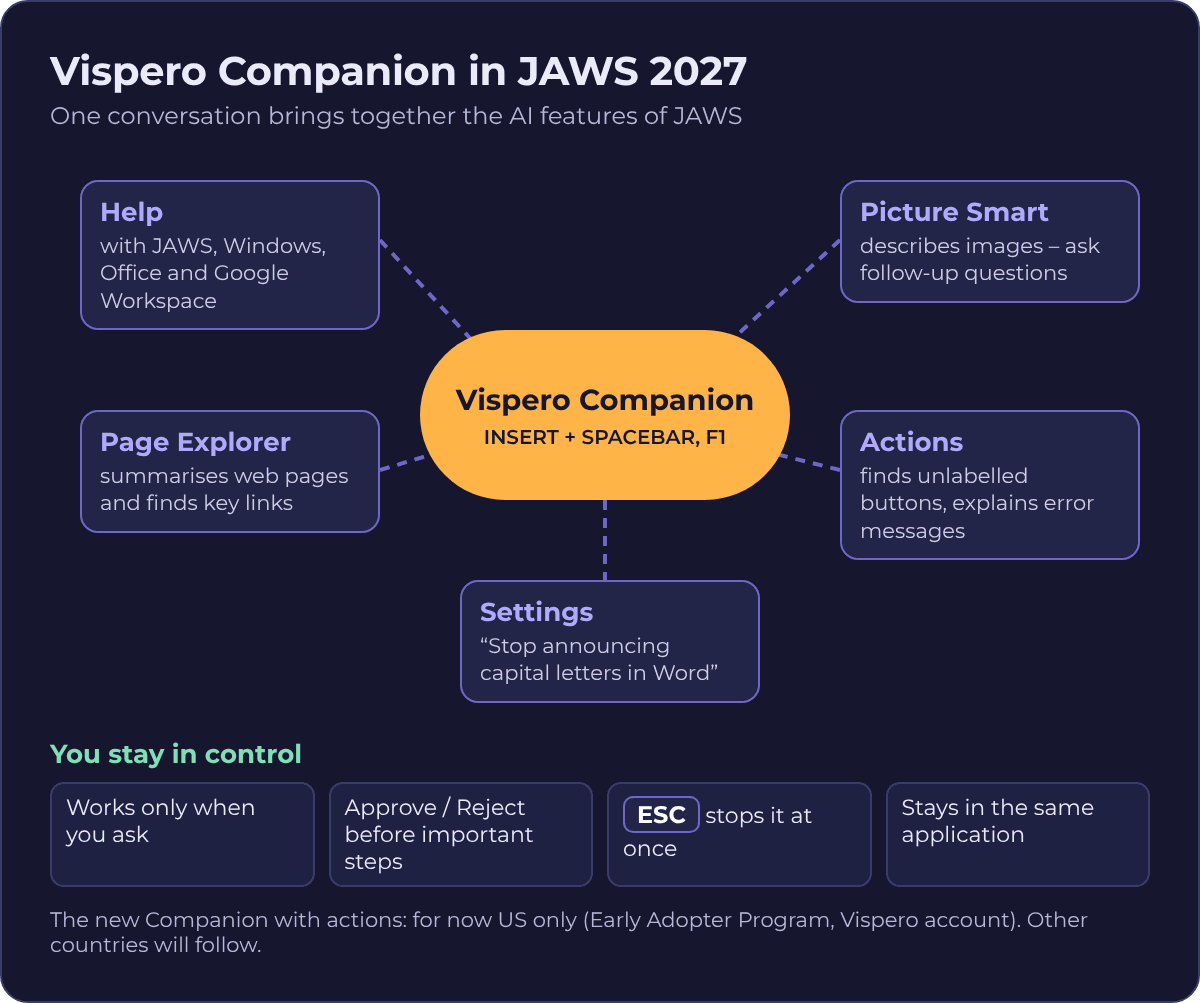
Vispero Companion started as an assistant answering questions about JAWS. In JAWS 2027 it becomes one place for all the AI features of JAWS: how a feature works, a description of a photo, an overview of a busy web page, or help getting a task done. Everything happens in one accessible window, and because it is one conversation, you can ask follow-up questions without starting over. Companion opens with INSERT + SPACEBAR followed by F1.
Picture Smart (image description) and Page Explorer (web page overview) keep their existing commands, but the results now appear in the Companion window. After an image description you can ask about details, such as the colour of a shirt or the text on a sign. After a page overview you can ask more and still jump straight to the important links. The conversation is kept while it is active; there is no list of earlier conversations.
Actions: Companion can do things for the user
With Vispero Companion Actions you can ask Companion to help complete a task. This is especially useful when a website, form or dialog box does not behave as it should: Companion can find an unlabelled button, explain a confusing error message, give an overview of a cluttered screen or help when the usual path is unclear. New JAWS users can get unstuck in the moment and learn along the way. Experienced users get help when the problem is not them but an application that was not built to be accessible.
Change settings just by asking
If you cannot remember where a setting is, just say what you want – for example "Speak words as I type in every application" or "Stop announcing capital letters in Word". Companion finds, reads and changes supported settings in Quick Settings and Settings Center, and it knows the difference between changing a setting everywhere and only in the current application. Advanced braille settings, speech and sound schemes and voice profiles cannot be changed this way yet; Vispero plans to add them in the coming months. Until then, Companion explains how to do it yourself.
The user stays in control
- Companion acts only when the user opens it and asks – never on its own.
- Before important or sensitive steps, the user must choose Approve or Reject.
- ESC stops Companion immediately.
- If a task takes a while, Companion pauses and asks whether to continue. If you stop, it tells you what it has finished.
- Companion stays in the application where it started. If it is helping in Word, it will not move into Outlook and email your document; it stops and explains that the next step is in another application.
- Companion cannot operate its own window – the controls there always belong to the user.
Companion has its own voice, so its replies are easy to tell apart from regular JAWS speech. The voice is chosen under the JAWS AI Voice context in the Voice Adjustment dialog box.
Can the new Companion be used in Denmark?
Not yet. The new version with actions is part of the Early Adopter Program and requires users to be in the United States and signed in with a Vispero account. Vispero will announce availability in other countries later. Users in Denmark lose nothing: the familiar Companion keeps working and answers questions about JAWS, Windows, web browsing, Microsoft Office and Google Workspace step by step, with keystrokes. It is also available as a website for devices without JAWS.
When the feature becomes available, it is turned on like this: sign in with the Vispero account (check this on the Account tab of the About dialog box in the Help menu), open the JAWS Options menu, choose Early Adopter Program, select Vispero Companion Actions, choose OK and restart JAWS.
AI features such as Picture Smart and Companion use online services. In workplaces with confidential data, agree with the IT department how they may be used.
More news in JAWS 2027
MuseScore: music without repetition
MuseScore is a popular free program for writing, editing and playing sheet music. Previously, JAWS spoke several layers of information for each note – segment, chord and note, each time with measure and beat. Now JAWS speaks only the note or element you move to, and the measure only when you enter a new one. The word "note" has been dropped, note names follow the language (for example Do, Re, Mi where that is customary), and accidentals are spoken only once. Three new Quick Settings control the detail: speak beat when navigating (on by default), speak octave only on change and speak voice only on change (both off by default). On the MuseScore menu bar, JAWS also protects the score: pressing UP ARROW, which would otherwise move a note, plays a sound and is ignored.
Windows Terminal and Command Prompt
- Less repetition: new output is read without repeating text that was already on the screen.
- Clearer tab completion: the full command is read for each option, and for file and folder names only the part of the path just filled in.
- Cleaner history: with UP ARROW and DOWN ARROW each previous command is read once, without the prompt.
- The whole session can be reviewed with INSERT + ALT + W (CAPS LOCK + ALT + W on laptops) – including output that has scrolled off the screen.
AI chat apps such as ChatGPT and Claude
Long replies in AI chat apps are now much easier to read. The Virtual Cursor stays in place while the page updates, so you can read the reply with the arrow keys and move between replies with H and SHIFT + H without being thrown to the top of the page. This works in Chrome and Edge and in the ChatGPT and Claude desktop apps.
Other changes
The Liblouis braille translator in JAWS and Fusion has been updated to version 3.39.0 with new languages; the release notes mention no changes for Danish braille. Research It has been removed, because its older technology no longer meets current security standards. The command for elements with aria-details is now INSERT + SHIFT + D. Links and buttons work again in some web apps, including online test platforms – important for pupils and students. The rest are minor fixes listed in Vispero's release notes.
What do the 2027 versions mean for users in Denmark?
- Employees with low vision benefit most from CAPS LOCK + D and Photo Tracking. Both work without sending data out of the organisation, and neither requires IT to weaken security.
- Pupils and students benefit from the fix for online test platforms and – in music lessons – from the new MuseScore support.
- Blind JAWS users must wait for the big AI news, Companion with actions, but already get better reading in AI chat apps, terminals and sheet music.
- Danish: JAWS and ZoomText are available with a Danish user interface, and the new features have Danish names in the program, such as Foto sporing, Udglatning og ydeevne and Ægte centreret sporing.
- Updating: new versions are normally included with a valid licence with a software maintenance agreement (SMA). If the program was granted by the municipality, the vision consultant or the supplier can tell whether the update is covered.
How to update
The programs are downloaded from Vispero. The installer uses the internet during installation; for computers without a connection there is a large offline installer that can be moved with, for example, a USB cane. The installation follows the Windows language. Users on the latest version with automatic updates turned on can start the download directly from the update notification.
A good first step after updating is to try Photo Tracking on a familiar family photo and choose favourite categories, so the feature suits the user's own pictures.
Frequently asked questions
Does Photo Tracking need the internet?
No. Recognition happens on the computer. Only the description of an object with ENTER in Fusion requires the internet.
Where does Photo Tracking work?
Vispero mentions images on web pages, in Word documents, in PDF files and in image viewers.
Does IT have to turn off security for ZoomText to show protected windows?
No. With CAPS LOCK + D the content is shown while the protection stays on. The command requires ZoomText or Fusion 2027.
Can I use the new Vispero Companion in Denmark?
Not yet. The new version is for now only for users in the US. The existing Companion works as before.
What is the difference between ZoomText and Fusion?
ZoomText magnifies the screen, and ZoomText Magnifier/Reader also reads text aloud. Fusion is ZoomText and JAWS in one package. Read more in JAWS, ZoomText, Fusion or SuperNova?
Sources
Responsible for the content: Sergiy Moskalets, Inva Store – working with assistive technology and IT for blind and visually impaired people since 1999. Read more about us.